

Note
Go to the end to download the full example code.
Customize plot display options and animate results#
This example demonstrates how to configure plot display options and animate results across time steps in Result Explorer:
Plot view management to find and configure displacement views.
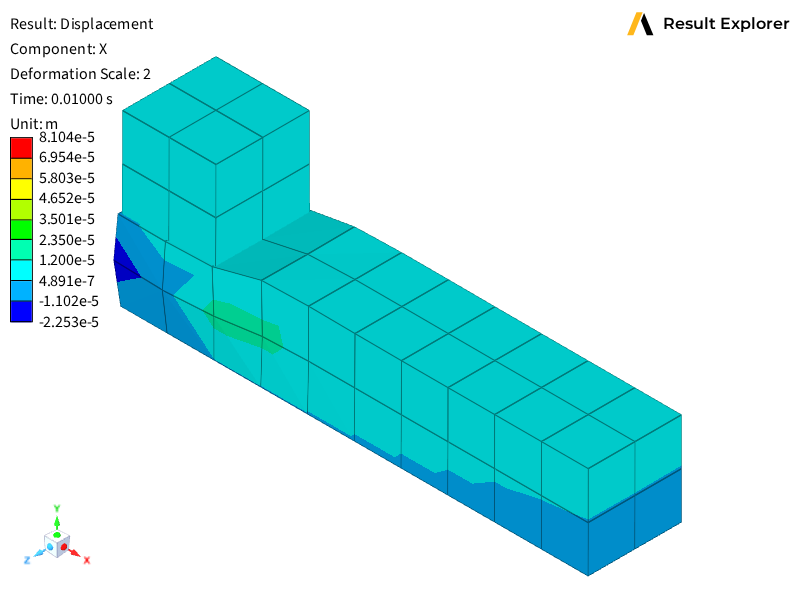
Display options customization for deformation, component selection, and mesh visualization.
Result range control using global min/max settings.
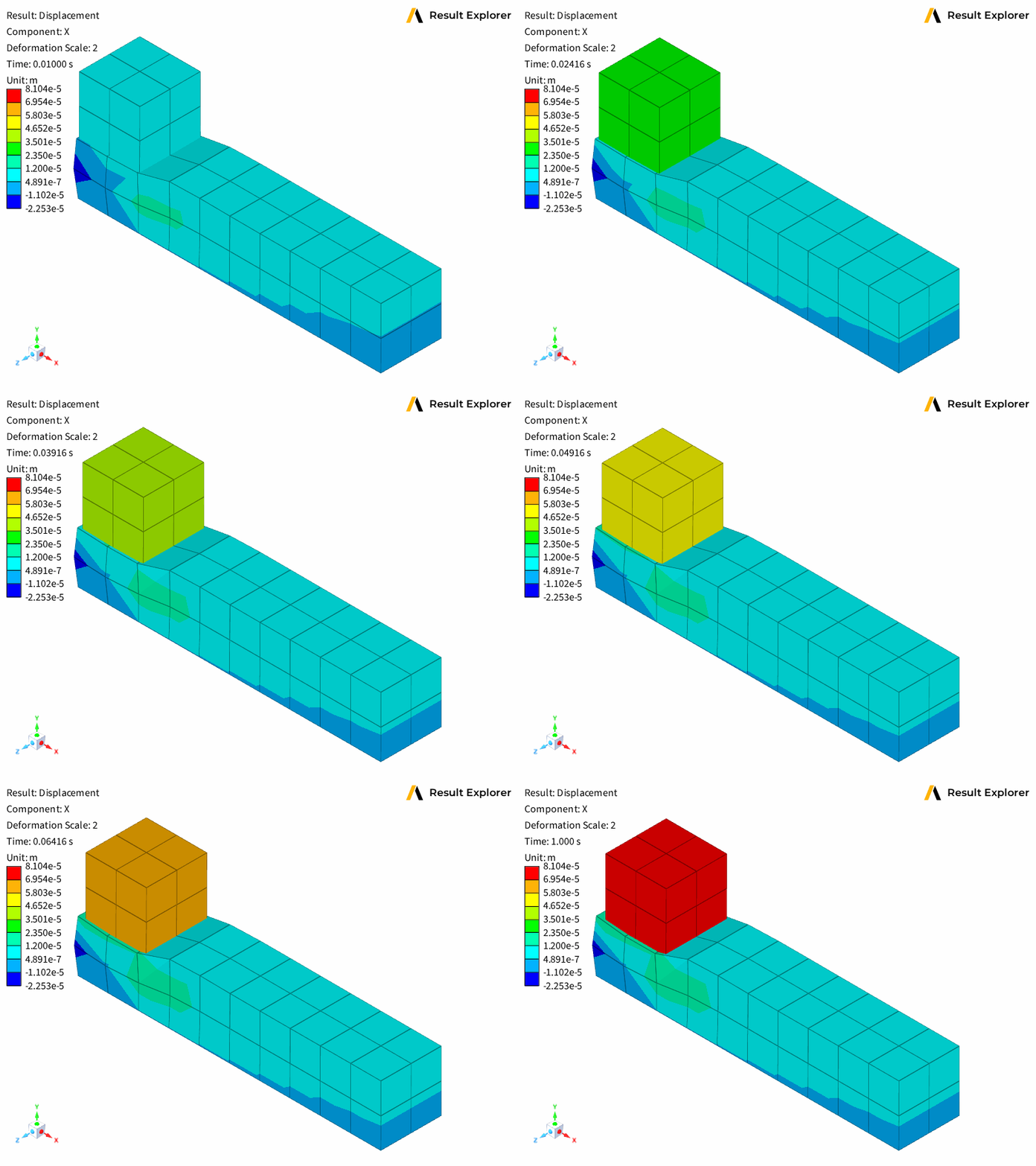
Animation through time steps by updating plot properties dynamically.
This example uses a transient contact analysis result to showcase animation and visualization options across multiple timesteps.
Import the standard library and third-party dependencies.
import imageio
Import the Result Explorer dependencies.
from ansys.result_explorer.core import (
    PlotView,
    launch_result_explorer,
)
from ansys.result_explorer.core.examples import (
    ExampleKeys,
    get_example_file,
    get_example_snapshot_settings,
)
Launch Result Explorer#
Start a Result Explorer instance for this example.
rx = launch_result_explorer()
Load example data#
Create a solution from the transient contact analysis data.
rst_path = get_example_file(ExampleKeys.RST_CP_TRANSIENT)

sol = rx.create_solution(
    name="Contact Transient Analysis",
    file_path=rst_path,
)
print(f"Created solution:\n{sol}")
Created solution:


======================================================================
Solution: Contact Transient Analysis
======================================================================
ID:                      5d574d25-4b88-4fd9-a9e1-1082c8d009e0
Description:             N/A

Status:
  Ready:                   Yes
  Live:                    No

Result Files:
  - /home/runner/work/pyresultexplorer/pyresultexplorer/tests/data/cp_trans/file.rst (key: rst)

Analysis Information:
  Physics Type:            mechanical
  Analysis Type:           transient
  Solver Version:          24.2
  Unit System:             MKS: m, kg, N, s, V, A, degC

Mesh Information:
  Num Elements:            122
  Num Nodes:               406
  Num Named Selections:    13
  Num Bodies:              10
  Distance Unit:           m

Results Information:
  Num Sets:                15
  Available Results:       24
  Time/Freq Unit:          s

Available Plot Results:
  Displacement
    - total_displacement
    - displacement [X, Y, Z]
  Stress
    - stress_tensor [XX, YY, ZZ, XY, YZ, XZ]
    - equivalent_von_mises_stress
    - principal_stress_1 [1]
    - principal_stress_2 [2]
    - principal_stress_3 [3]
  Velocity
    - total_velocity
    - velocity [X, Y, Z]
  Acceleration
    - total_acceleration
    - acceleration [X, Y, Z]
  Temperature
    - temperature
  Heat Flux
    - total_heat_flux
    - heat_flux [X, Y, Z]
  Structural Temperature
    - structural_temperature
  Contact
    - contact_status
    - contact_pressure
    - contact_penetration
    - contact_sliding_distance
    - contact_gap_distance
    - contact_friction_stress
    - contact_total_stress
    - contact_fluid_penetration_pressure
    - contact_surface_heat_flux
  Newton Raphson Residual
    - total_force
    - total_moment
  User Defined

Solver Text Outputs (Logs):
  - solve.out
  - file.err
  - file.gst
  - file.cnd
======================================================================
Find and configure a plot view#
Locate the displacement view and configure it to show all time steps.
views = sol.plot_views
disp_view: PlotView = next((v for v in views if "Displacement" in v.name), None)

assert disp_view is not None, "Displacement view not found in solution"

plot_definition = disp_view.definition
plot_definition.all_sets = True
plot_definition.last_set = False

disp_view = sol.update_plot(plot_definition)
assert disp_view.definition.all_sets is True
assert disp_view.definition.last_set is False

print(f"Found displacement view: {disp_view.name}")
Found displacement view: Displacement
Create workspace and assign view#
Create a workspace and assign the displacement view to a viewport.
workspace = rx.create_workspace(name="Plot Viewports")
print(f"Created workspace with {len(workspace.viewport_ids)} viewports (2x1 grid)")

disp_viewport = workspace.viewports[0]
disp_viewport = disp_viewport.set_view(disp_view, wait=True)
Created workspace with 1 viewports (2x1 grid)
Customize display options#
Configure plot display options including deformation scale and mesh edges.
with disp_viewport.update_display_options() as disp_opts:
    disp_opts.result_options.use_global_min_max = True
    disp_opts.result_options.component_index = 0
    disp_opts.result_options.deformation_scale = 2
    disp_opts.result_options.legend_range = None  # auto-range based on current component values
    disp_opts.show_mesh_edges = True

# Save thumbnail image
disp_viewport.save_snapshot(
    file_path="011-plot-display-options-set-1.png", settings=get_example_snapshot_settings()
)
Animate through time steps#
Animate the displacement plot across all available time steps and save as a GIF.
time_frequencies = sol.time_frequencies
print(f"Animating over {len(time_frequencies)} time steps...")

with imageio.get_writer("011-plot-display-options.gif", mode="I") as writer:
    for i, tf in enumerate(time_frequencies):
        print(f"  Step {i}: set_id={tf.set_id}, value={tf.value}")
        with disp_viewport.update_display_options() as opts:
            # Update the set_id to change the displayed time step
            opts.result_options.set_id = tf.set_id

        meta = disp_viewport.metadata
        for extreme in [meta.active_result.min, meta.active_result.max]:
            print(f"    entity={extreme.entity_id}, value={extreme.value}, pos={extreme.position}")

        snapshot_data = disp_viewport.take_snapshot(settings=get_example_snapshot_settings())
        image = imageio.imread(snapshot_data)
        writer.append_data(image)

rx.stop()
Animating over 15 time steps...
  Step 0: set_id=1, value=0.009999999776482582
    entity=179, value=-2.2526712200487964e-05, pos=(0.0, 0.0005000000237487257, 0.0005000000237487257)
    entity=7, value=8.104425796773285e-05, pos=(0.0010000000474974513, 0.0020000000949949026, 0.0010000000474974513)
/home/runner/work/pyresultexplorer/pyresultexplorer/examples/011-plot-display-options.py:135: DeprecationWarning: Starting with ImageIO v3 the behavior of this function will switch to that of iio.v3.imread. To keep the current behavior (and make this warning disappear) use `import imageio.v2 as imageio` or call `imageio.v2.imread` directly.
  image = imageio.imread(snapshot_data)
  Step 1: set_id=2, value=0.014579120092093945
    entity=179, value=-2.2526712200487964e-05, pos=(0.0, 0.0005000000237487257, 0.0005000000237487257)
    entity=7, value=8.104425796773285e-05, pos=(0.0010000000474974513, 0.0020000000949949026, 0.0010000000474974513)
  Step 2: set_id=3, value=0.019158240407705307
    entity=179, value=-2.2526712200487964e-05, pos=(0.0, 0.0005000000237487257, 0.0005000000237487257)
    entity=7, value=8.104425796773285e-05, pos=(0.0010000000474974513, 0.0020000000949949026, 0.0010000000474974513)
  Step 3: set_id=4, value=0.024158241227269173
    entity=179, value=-2.2526712200487964e-05, pos=(0.0, 0.0005000000237487257, 0.0005000000237487257)
    entity=7, value=8.104425796773285e-05, pos=(0.0010000000474974513, 0.0020000000949949026, 0.0010000000474974513)
  Step 4: set_id=5, value=0.02915824018418789
    entity=179, value=-2.2526712200487964e-05, pos=(0.0, 0.0005000000237487257, 0.0005000000237487257)
    entity=7, value=8.104425796773285e-05, pos=(0.0010000000474974513, 0.0020000000949949026, 0.0010000000474974513)
  Step 5: set_id=6, value=0.034158241003751755
    entity=179, value=-2.2526712200487964e-05, pos=(0.0, 0.0005000000237487257, 0.0005000000237487257)
    entity=7, value=8.104425796773285e-05, pos=(0.0010000000474974513, 0.0020000000949949026, 0.0010000000474974513)
  Step 6: set_id=7, value=0.03915823996067047
    entity=179, value=-2.2526712200487964e-05, pos=(0.0, 0.0005000000237487257, 0.0005000000237487257)
    entity=7, value=8.104425796773285e-05, pos=(0.0010000000474974513, 0.0020000000949949026, 0.0010000000474974513)
  Step 7: set_id=8, value=0.04415823891758919
    entity=179, value=-2.2526712200487964e-05, pos=(0.0, 0.0005000000237487257, 0.0005000000237487257)
    entity=7, value=8.104425796773285e-05, pos=(0.0010000000474974513, 0.0020000000949949026, 0.0010000000474974513)
  Step 8: set_id=9, value=0.0491582415997982
    entity=179, value=-2.2526712200487964e-05, pos=(0.0, 0.0005000000237487257, 0.0005000000237487257)
    entity=7, value=8.104425796773285e-05, pos=(0.0010000000474974513, 0.0020000000949949026, 0.0010000000474974513)
  Step 9: set_id=10, value=0.05415824055671692
    entity=179, value=-2.2526712200487964e-05, pos=(0.0, 0.0005000000237487257, 0.0005000000237487257)
    entity=7, value=8.104425796773285e-05, pos=(0.0010000000474974513, 0.0020000000949949026, 0.0010000000474974513)
  Step 10: set_id=11, value=0.059158239513635635
    entity=179, value=-2.2526712200487964e-05, pos=(0.0, 0.0005000000237487257, 0.0005000000237487257)
    entity=7, value=8.104425796773285e-05, pos=(0.0010000000474974513, 0.0020000000949949026, 0.0010000000474974513)
  Step 11: set_id=12, value=0.06415823847055435
    entity=179, value=-2.2526712200487964e-05, pos=(0.0, 0.0005000000237487257, 0.0005000000237487257)
    entity=7, value=8.104425796773285e-05, pos=(0.0010000000474974513, 0.0020000000949949026, 0.0010000000474974513)
  Step 12: set_id=13, value=0.06915824115276337
    entity=179, value=-2.2526712200487964e-05, pos=(0.0, 0.0005000000237487257, 0.0005000000237487257)
    entity=7, value=8.104425796773285e-05, pos=(0.0010000000474974513, 0.0020000000949949026, 0.0010000000474974513)
  Step 13: set_id=14, value=0.07415824383497238
    entity=179, value=-2.2526712200487964e-05, pos=(0.0, 0.0005000000237487257, 0.0005000000237487257)
    entity=7, value=8.104425796773285e-05, pos=(0.0010000000474974513, 0.0020000000949949026, 0.0010000000474974513)
  Step 14: set_id=15, value=1.0
    entity=179, value=-2.2526712200487964e-05, pos=(0.0, 0.0005000000237487257, 0.0005000000237487257)
    entity=7, value=8.104425796773285e-05, pos=(0.0010000000474974513, 0.0020000000949949026, 0.0010000000474974513)
Total running time of the script: (0 minutes 33.975 seconds)